Australia

Whether you're creating a detailed software tutorial, producing polished marketing videos, or capturing gameplay highlights, finding the best screen recording software is crucial for a smooth workflow. The right tool can mean the difference between a frustrating, time-consuming process and a simple, professional-looking final product. This roundup is designed to cut through the noise, offering a direct comparison of the top platforms available today for various needs and budgets.
From powerful, open-source solutions like OBS Studio to user-friendly, collaborative platforms like Loom, we analyse what makes each option stand out. Our goal is to help you select the ideal software by breaking down key features, pricing structures, and platform compatibility for each entry. We'll explore practical use-cases, so you can clearly visualise which tool aligns with your specific projects, whether you're a content creator, educator, or business professional. To grasp how screen recording fits into a broader content creation strategy, especially for business, consider consulting an in-depth guide to video production for corporate training.
This guide provides clear, actionable insights into seven of the most effective screen recorders on the market, complete with screenshots and direct links to help you get started immediately.
1. OBS Studio
OBS Studio stands out as the undisputed powerhouse of free and open-source screen recording software. It offers a level of customisation and control typically found only in premium, professional-grade applications. While many tools focus on simplicity, OBS Studio provides a complete production suite, allowing you to create complex scenes with multiple sources, including window captures, images, text, browser windows, and webcam feeds. This makes it an ideal choice for content creators, streamers, and educators who need to produce polished, high-quality video content without any financial investment.
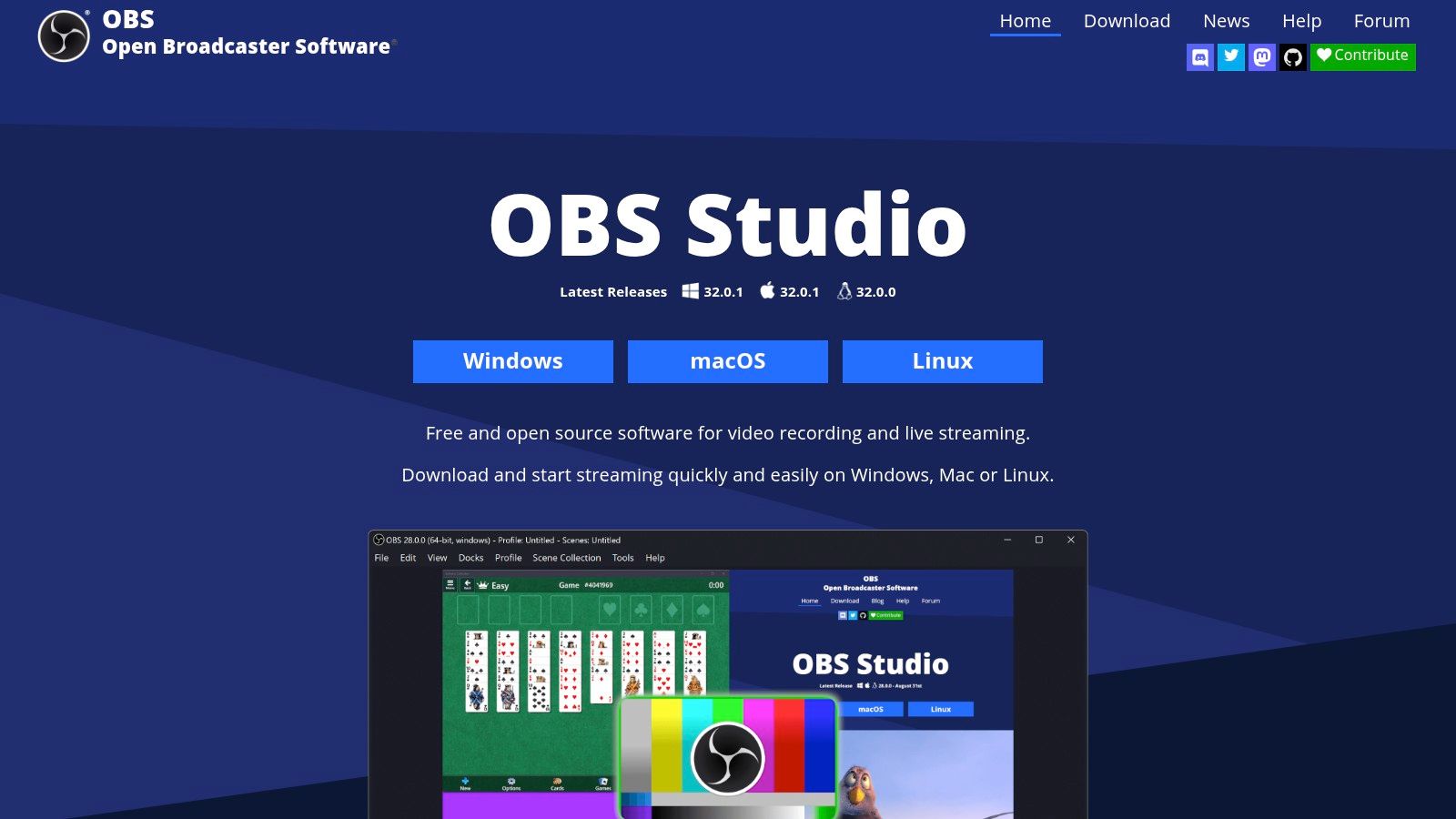
Its strength lies in its modularity. You can arrange and transition between different scenes seamlessly, a feature invaluable for live streaming or creating dynamic tutorials. The integrated audio mixer provides granular control over sound sources, with per-source filters like noise gates and suppression. This ensures your audio quality matches your professional-looking video.
Key Features and Use Cases
OBS Studio is more than just a recorder; it's a complete video production environment. Its compatibility across different operating systems makes it a versatile tool for any user. For those running the latest Microsoft OS, it's beneficial to ensure your system is correctly configured; you can find helpful information about setting up Windows 11 to guarantee smooth performance.
- Unlimited Scenes: Combine various sources (game capture, webcams, browser windows) into distinct layouts you can switch between on the fly.
- Studio Mode: Preview and adjust scenes before pushing them live, preventing on-air mistakes.
- Advanced Audio Mixing: Utilise VST plugin support and per-source filters for professional, broadcast-quality audio.
- Extensive Customisation: A massive library of community-created plugins adds new features, transitions, and integrations.
Our Take: For users willing to invest a small amount of time to learn its interface, OBS Studio offers unparalleled power and flexibility at zero cost, making it the best screen recording software for serious creators on a budget. Just be sure to download it directly from the official website to avoid malicious ads.
| Feature | Details |
|---|---|
| Pricing | Completely free (Open-Source) |
| Compatibility | Windows, macOS, Linux |
| Watermarks | None |
| Best For | Live streaming, detailed tutorials, professional video. |
| Website | https://obsproject.com |
2. TechSmith Camtasia
TechSmith Camtasia is a premium, all-in-one solution that expertly combines a powerful screen recorder with a full-featured video editor. It's specifically designed for professionals in education, marketing, and corporate training who need to produce polished, high-quality instructional content efficiently. Unlike tools that simply capture the screen, Camtasia provides an integrated workflow, allowing you to move seamlessly from recording your desktop to editing the footage on a multi-track timeline, all within a single application.
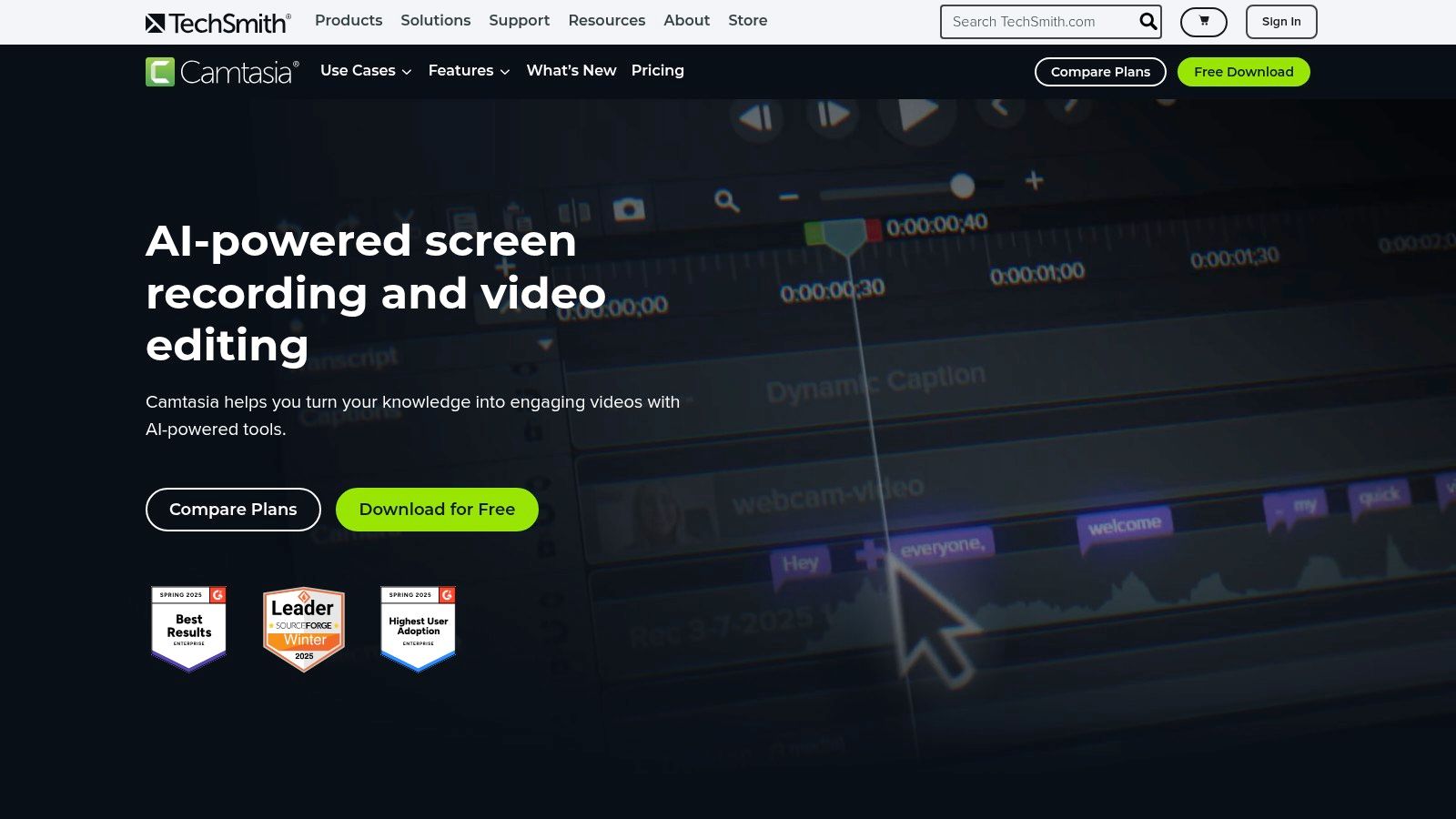
The platform's key strength lies in its user-friendly yet robust editing suite. It’s packed with pre-built assets, including templates, themes, annotations, and callouts, which dramatically speeds up the creation of professional-looking tutorials and presentations. Cursor effects, animations, and transitions are easily applied, helping to guide the viewer’s attention and clarify complex topics. This focus on simplifying the post-production process makes it one of the best screen recording software options for users who value both quality and speed.
Key Features and Use Cases
Camtasia’s ecosystem is built for streamlining the creation of training and demonstration videos. Its tight integration between recorder and editor removes friction from the production process. While its recording capabilities are excellent, its true power is unlocked in the editing phase, where it shines as one of the best video editing software for beginners due to its intuitive design and powerful features.
- Integrated Recorder and Editor: Seamlessly capture your screen, webcam, and audio, then immediately start editing in a powerful timeline editor.
- Templates and Asset Library: Jump-start projects with professional templates, and add polish with a built-in library of music, callouts, and animations.
- Cursor FX and Annotations: Easily highlight, magnify, or spotlight your cursor movements and add clear, professional-looking text and shapes.
- Interactive Quizzing: Add quizzes and interactivity directly into your videos to engage viewers and track comprehension, ideal for e-learning content.
Our Take: For businesses, educators, and creators who need to produce high-quality instructional content without a steep learning curve, Camtasia is a top-tier investment. While its premium price and subscription model may not be for everyone, its efficiency and polished results are unmatched in the market.
| Feature | Details |
|---|---|
| Pricing | Paid (Subscription-based and perpetual licenses available) |
| Compatibility | Windows, macOS |
| Watermarks | None on paid version (Trial version has watermark) |
| Best For | Corporate training, educational tutorials, software demos. |
| Website | https://www.techsmith.com/camtasia |
3. Loom
Loom reimagines screen recording as a tool for communication, prioritising speed and collaboration over complex editing suites. It excels in the modern workplace by making asynchronous video messaging effortless. Instead of typing a long email or scheduling a meeting, users can quickly record their screen and voice, and instantly share a link. This makes Loom the ideal choice for quick walkthroughs, team updates, bug reports, and providing feedback, streamlining communication and boosting productivity.
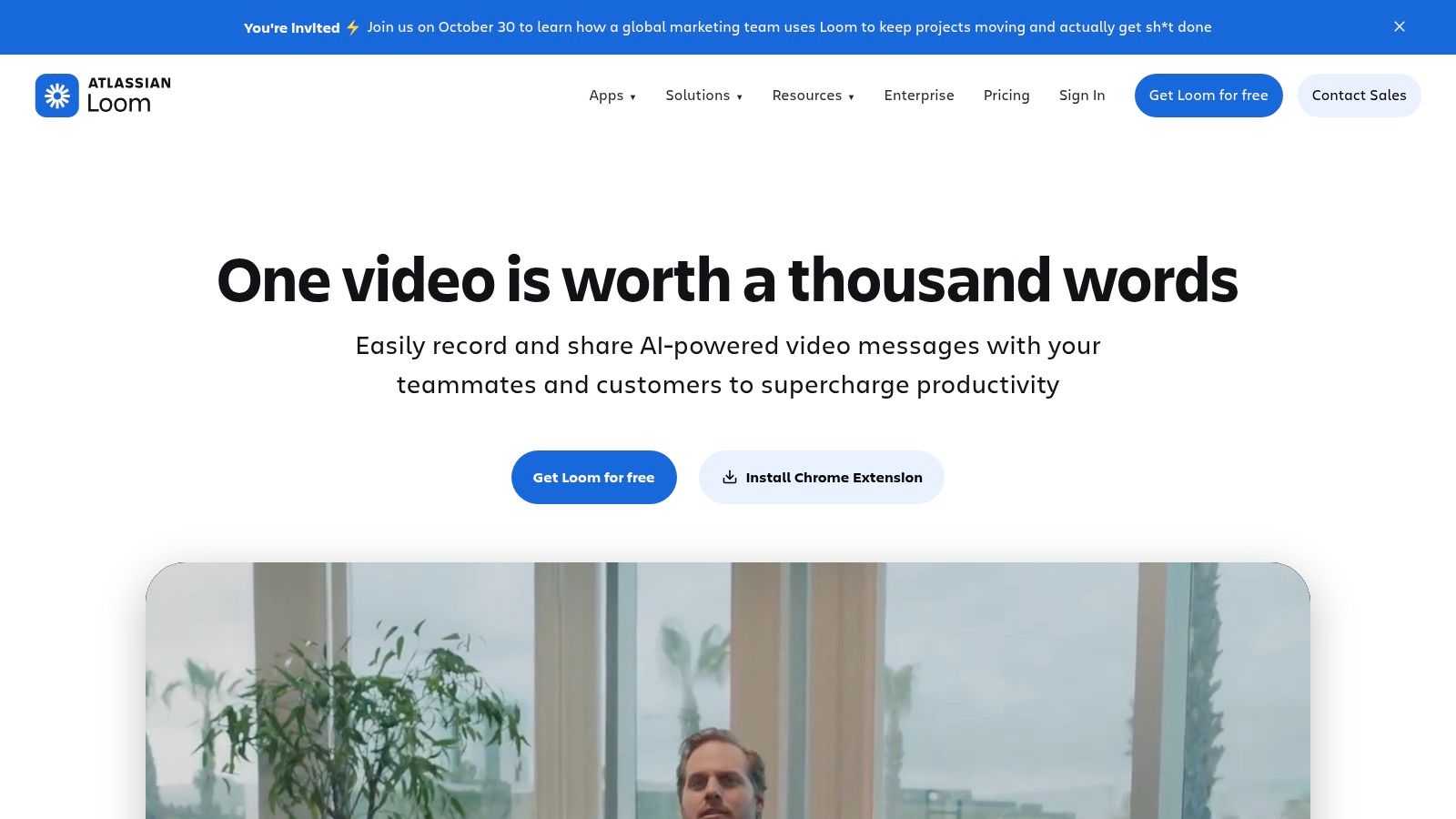
Its core strength is its frictionless workflow. From the moment you finish recording, the video is already uploaded and a shareable link is copied to your clipboard. Viewers can comment and react directly on the video timeline, creating a focused, contextual conversation. This rapid record-to-share process is available via desktop apps, a mobile app, and a convenient Chrome extension, ensuring you can create and share updates from anywhere.
Key Features and Use Cases
Loom is more than a simple recorder; it’s a fully-fledged video communication platform designed for team-based work. Paid plans introduce powerful AI features that automatically generate titles, summaries, and chapters, saving valuable time. For organisations, it is also crucial to secure accounts properly; learning more about what is two-factor authentication can help protect your team's workspace and sensitive video content.
- Instant Sharing: Videos are hosted in the cloud and shareable via a link the second you stop recording.
- Viewer Analytics: See who has watched your video, track view counts, and gauge engagement with viewer reactions.
- Team Collaboration: Organise videos in a shared team library, control access with advanced privacy settings, and use comments for feedback.
- Powerful Integrations: Embed and share Looms directly within popular tools like Slack, Notion, Jira, and GitHub.
Our Take: Loom is the best screen recording software for professionals and teams who value speed and clear communication. It dramatically reduces the need for meetings and lengthy emails, making it an indispensable tool for remote and hybrid work environments.
| Feature | Details |
|---|---|
| Pricing | Free plan available; Paid plans from US$12.50/user/month |
| Compatibility | Windows, macOS, iOS, Android, Chrome Extension |
| Watermarks | None |
| Best For | Team collaboration, quick tutorials, asynchronous work. |
| Website | https://www.loom.com |
4. ScreenPal (formerly Screencast-O-Matic)
ScreenPal, widely recognised by its former name Screencast-O-Matic, positions itself as a remarkably accessible and comprehensive solution for educators, small businesses, and individuals. It moves beyond simple screen capture by integrating recording, a capable video editor, and a hosting platform into one cohesive suite. This all-in-one approach simplifies the workflow for creating, polishing, and sharing video content, making it an excellent choice for users who need a powerful toolset without a steep learning curve or high price tag.

The platform's strength lies in its user-friendly design and its focus on creating engaging, interactive content. Its availability across Windows, macOS, Chromebook, and mobile devices provides fantastic flexibility. The built-in editor offers more than just basic trimming, including features like overlays, zooms, and an extensive stock media library, allowing for the creation of professional-looking tutorials and presentations with minimal effort.
Key Features and Use Cases
ScreenPal is engineered to be a complete video creation ecosystem, from initial recording to final distribution and analysis. For organisations using the platform, it is crucial to manage team access and data security properly; you can find essential tips on how to prevent data breaches to ensure your content and user data remain protected.
- Interactive Video Quizzes: Embed questions, polls, and ratings directly into your videos to boost engagement and assess comprehension, perfect for e-learning.
- AI-Powered Features: Save time with intelligent tools like automatic caption generation, text-to-speech narration, and smart silence detection for quicker editing.
- Integrated Hosting and Analytics: Upload videos directly to ScreenPal for easy sharing, and track viewer engagement with detailed analytics to see what works.
- Team and Enterprise Plans: Offers centralised billing, administrative controls, and single sign-on (SSO) for seamless team collaboration and management.
Our Take: ScreenPal is one of the best screen recording software options for users who value speed, simplicity, and an all-in-one feature set. Its affordability and interactive tools make it a standout choice for the education and corporate training sectors.
| Feature | Details |
|---|---|
| Pricing | Free version available; Paid plans start at a low cost. |
| Compatibility | Windows, macOS, Chromebook, iOS, Android |
| Watermarks | Yes, on the free version |
| Best For | Educators, corporate trainers, quick tutorials, SMBs. |
| Website | https://screenpal.com |
5. Bandicam
Bandicam has carved out a niche as a highly efficient and lightweight screen recorder specifically designed for Windows users. It excels in capturing high-quality gameplay and long-form desktop recordings without putting a significant strain on system resources. This focus on performance is achieved through hardware acceleration (Nvidia, Intel, AMD), which allows for smooth capture even at high resolutions and frame rates. It's an excellent choice for gamers, educators, and professionals who need a reliable, set-and-forget recording tool that prioritises performance.
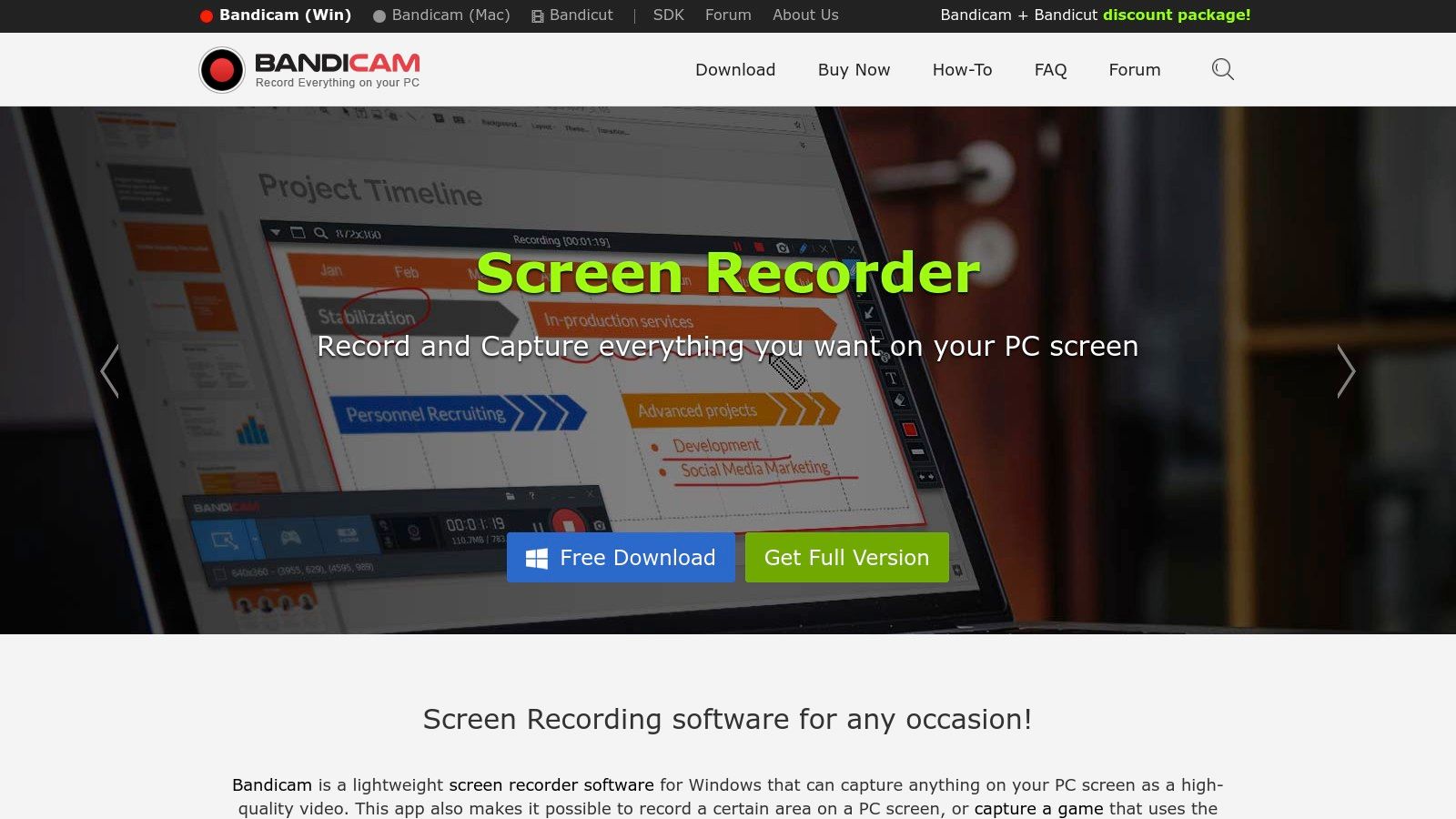
Unlike all-in-one suites, Bandicam focuses on doing one thing exceptionally well: capturing video. Its interface is straightforward, offering distinct modes for screen recording, game capture, and device recording (like webcams or HDMI capture devices). Features such as real-time drawing, mouse click effects, and scheduled recording add practical value for creating engaging tutorials and automated captures.
Key Features and Use Cases
Bandicam’s strength is its simplicity and power, making it a go-to for many Windows users. While its built-in editor, Bandicut, is a separate purchase, it allows for quick trims and joins. For more advanced post-production, you might explore some of the best video editing software for Windows to refine your captured footage.
- Multiple Recording Modes: Dedicated modes for capturing your screen, high-FPS games, or external video devices.
- Hardware Acceleration: Leverages your GPU to reduce CPU load, resulting in smaller file sizes and less system lag during recording.
- Real-time Drawing: Annotate your screen with lines, boxes, or text while recording, perfect for highlighting key information.
- Scheduled Recording: Set up recordings to start automatically at a specific date and time for a defined duration.
Our Take: Bandicam is a top-tier choice for Windows users seeking a high-performance recorder without the complexity of a full production suite. Its perpetual licence option offers fantastic long-term value, making it one of the best screen recording software solutions for focused, high-quality captures.
| Feature | Details |
|---|---|
| Pricing | Free version (with watermark), Paid from US$44.95 (Perpetual) |
| Compatibility | Windows |
| Watermarks | Yes on free version |
| Best For | Gameplay capture, long-form recording, low-spec PCs. |
| Website | https://www.bandicam.com |
6. Telestream ScreenFlow
Telestream ScreenFlow is a premium, Mac-only solution that expertly blends high-fidelity screen recording with a powerful, integrated video editing suite. It’s purpose-built for creators who demand a polished final product, making it a top choice for producing professional software demos, detailed application walkthroughs, and high-quality online course content. ScreenFlow excels at capturing crystal-clear video from Retina displays and is fully optimised for the latest macOS versions and Apple Silicon hardware, ensuring a smooth, native experience.
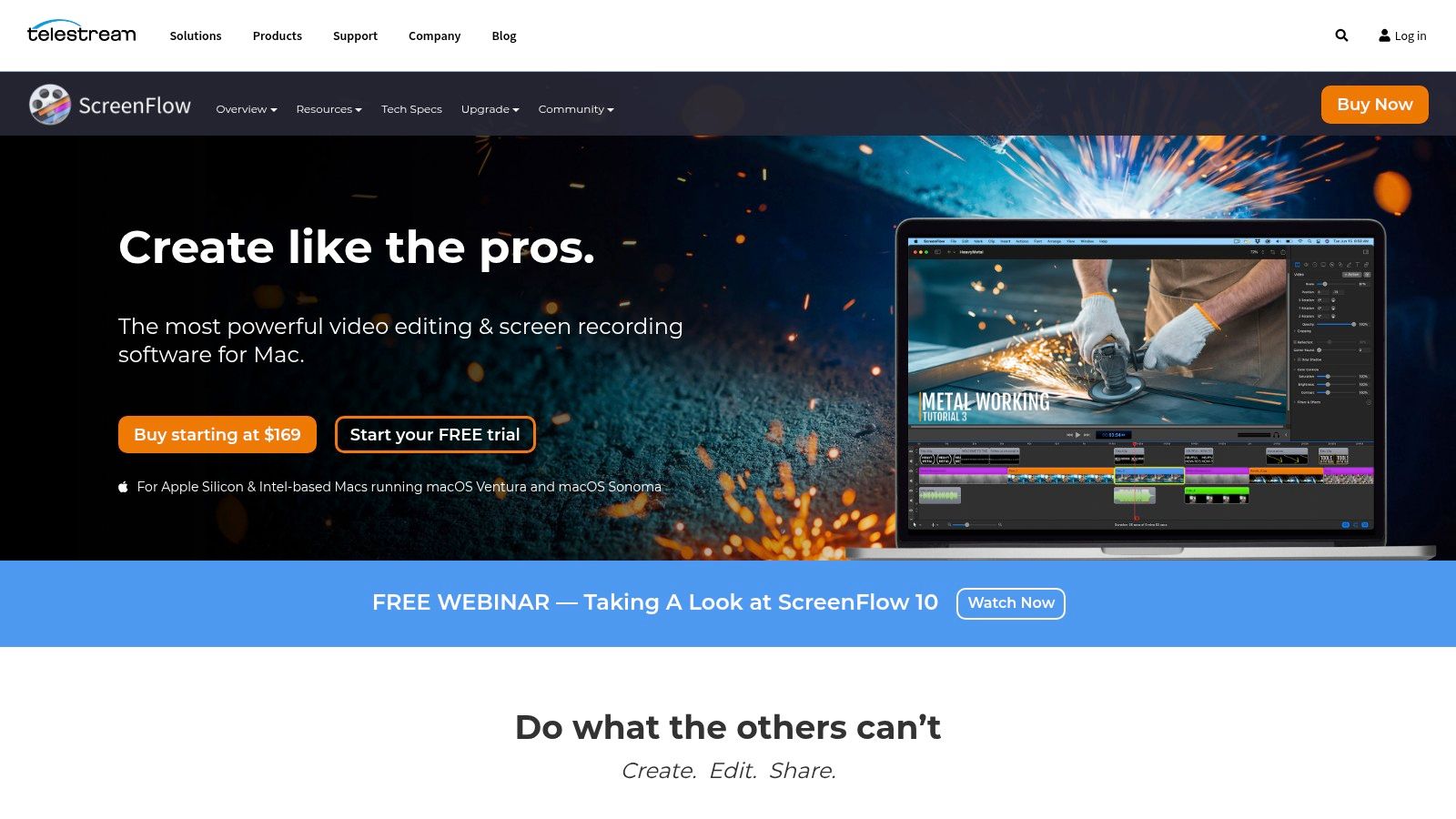
Unlike many tools that separate recording and editing, ScreenFlow combines them into one seamless workflow. After capturing your screen, webcam, and microphone, all assets are automatically placed onto a multi-track timeline. This is where the software truly shines, offering an intuitive interface to add annotations, text overlays, callouts, and smooth animations that highlight key actions, making complex tutorials easy to follow.
Key Features and Use Cases
ScreenFlow is designed to be an all-in-one production tool for Mac users, eliminating the need to export recordings to a separate video editor. Its strength lies in the depth of its post-production capabilities, which are specifically tailored to enhance instructional content and software demonstrations. This focus makes it a standout choice for educators and professional trainers.
- High-Quality Retina Capture: Record your Mac's screen in its full, stunning resolution for incredibly sharp and detailed videos.
- Integrated Multi-Track Editing: A powerful timeline editor allows you to precisely cut, arrange, and layer video and audio clips.
- Animations and Annotations: Easily add callouts, text animations, and video effects like zooms and pans to direct viewer attention.
- Optional Stock Media Library: An add-on subscription provides access to over 500,000 unique images, audio clips, and videos directly within the application.
Our Take: For Mac users seeking the best screen recording software that offers a perfect balance of powerful recording and professional editing in a single package, ScreenFlow is an outstanding investment. Its one-time purchase model is a welcome alternative to subscriptions, though it is exclusively for the macOS ecosystem.
| Feature | Details |
|---|---|
| Pricing | Starts at a one-time fee of $169 (USD) |
| Compatibility | macOS only |
| Watermarks | Yes, on the trial version |
| Best For | Professional tutorials, software demos, online courses. |
| Website | https://www.telestream.net/screenflow |
7. NVIDIA App (ShadowPlay)
For PC gamers and creators with an NVIDIA GeForce graphics card, the NVIDIA App (which includes the celebrated ShadowPlay technology) offers one of the most efficient and seamless screen recording experiences available. Built directly into the graphics driver, it leverages hardware acceleration to capture gameplay and desktop activity with a negligible impact on system performance. This makes it an exceptional choice for recording high-fidelity gaming sessions or demanding applications without sacrificing frame rates or responsiveness, a common issue with software-based recorders.
Its standout feature is the "Instant Replay" function, which continuously records your gameplay in a temporary buffer. This DVR-style system allows you to save the last few minutes of action with a single hotkey, ensuring you never miss an unexpected, epic moment. The tool is not just for gaming; its manual recording capabilities are robust, supporting high resolutions and frame rates, including efficient AV1 encoding on newer GPUs for superior quality at lower file sizes.
Key Features and Use Cases
While its user interface is streamlined and primarily geared towards gamers, the NVIDIA App is a powerful free tool for any GeForce user. It integrates performance overlays and sharing tools directly into its interface, making it easy to monitor your system and share clips. For creators, it pairs brilliantly with NVIDIA Broadcast, a separate suite of AI-powered tools that can remove background noise from your microphone or add virtual green screen effects to your webcam.
- Hardware-Accelerated Capture: Records high-quality video with minimal performance loss by using the dedicated encoder on the GPU.
- Instant Replay: Save the last 1 to 20 minutes of gameplay retroactively, so you never miss a highlight.
- High-Resolution Recording: Capture footage up to 8K HDR, depending on your hardware's capabilities.
- Performance Overlay: Display real-time stats like FPS, latency, and GPU usage while you record.
Our Take: For anyone with a compatible NVIDIA GPU, this is arguably the best screen recording software for capturing gameplay or performance-intensive tasks. It's completely free, incredibly efficient, and perfectly designed for capturing brilliant moments without getting in the way.
| Feature | Details |
|---|---|
| Pricing | Free (Requires a compatible NVIDIA GeForce GPU) |
| Compatibility | Windows |
| Watermarks | None |
| Best For | Gamers, capturing performance-heavy applications. |
| Website | https://www.nvidia.com |
Top 7 Screen Recorders — Feature Comparison
| Tool | Complexity 🔄 | Resource needs ⚡ | Expected outcomes ⭐ | Ideal use cases 💡 | Key advantages 📊 |
|---|---|---|---|---|---|
| OBS Studio | High — steep learning curve for advanced setups | Moderate–High (CPU/GPU recommended; plugins may add load) | Broadcast-quality, highly customizable recordings/streams | Live streaming, multi-scene productions, plugin-driven workflows | Free & open-source, cross-platform, extensive plugin ecosystem |
| TechSmith Camtasia | Moderate — integrated recorder + timeline editor, user-friendly | Moderate (editing benefits from strong CPU/RAM) | Polished, tutorial-ready videos with professional effects | Training, marketing videos, educational course creation | Robust editor, templates, media library, strong vendor support |
| Loom | Very low — one-click record & share | Low local resources; cloud-hosted (needs good internet) | Fast, shareable videos for clear asynchronous communication | Quick walkthroughs, team updates, async feedback | Instant links, viewer analytics, team collaboration features |
| ScreenPal (Screencast-O-Matic) | Low–Moderate — easy to learn with built-in tools | Low–Moderate; cross-platform including mobile & Chromebook | Good-quality instructional videos with interactivity | Educators, SMBs, light editing + quizzes | Affordable, hosting + analytics, interactive quizzes and AI captions |
| Bandicam | Low — simple UI focused on capture settings | Low overhead with hardware acceleration; Windows-only | Efficient long-form and game captures with compact files | Gameplay recording, scheduled/long-duration captures on Windows | Perpetual license option, lightweight performance, real-time drawing |
| Telestream ScreenFlow | Moderate — polished Mac-native recorder + editor | Moderate–High (optimised for macOS/Apple Silicon) | High-quality Retina demos and polished tutorials | macOS creators producing demos, course content, app walkthroughs | Mac-optimized workflow, integrated timeline editor, one-time license |
| NVIDIA App (ShadowPlay) | Very low — quick overlay controls for capture | Very low CPU overhead (requires compatible GeForce GPU) | High-quality, low-impact game/DVR captures (no built-in editor) | Fast gaming highlights, Instant Replay, performance-friendly capture | Free for GeForce users, GPU-accelerated recording, Instant Replay |
Choosing the Right Recorder for Your Needs
Selecting the best screen recording software from a crowded market can feel overwhelming, but the ideal choice ultimately hinges on your specific goals, technical expertise, and budget. Throughout this guide, we've explored a diverse range of powerful tools, from the unparalleled flexibility of OBS Studio to the professional polish of TechSmith Camtasia and the rapid-fire communication efficiency of Loom. Each platform offers a unique value proposition tailored to different user needs.
The key takeaway is that there is no single "best" solution for everyone. Your perfect tool is the one that aligns seamlessly with your workflow. A professional course creator will find immense value in Camtasia's all-in-one editing suite, while a support agent resolving customer tickets will achieve faster results with Loom's instant sharing links. Similarly, a dedicated gamer looking to capture high-fidelity gameplay without performance loss will naturally gravitate towards NVIDIA App or Bandicam.
Final Considerations for Your Decision
Before making your final choice, reflect on these critical factors to ensure you're investing your time and resources wisely:
- Primary Use Case: Are you creating detailed tutorials, quick team updates, high-resolution game streams, or polished marketing videos? Define your main objective first, as this will immediately narrow your options.
- Editing Requirements: Do you need a simple trim and crop function, or a full-fledged editor with transitions, annotations, and multi-track audio mixing? If your needs are complex, a dedicated suite like Camtasia or ScreenFlow is essential. If not, a simpler tool will suffice.
- Collaboration and Sharing: How will your recordings be distributed? Consider whether you need cloud hosting, instant shareable links, or direct integration with platforms like Slack and Jira.
- System Resources: High-performance recorders like OBS Studio or NVIDIA App can be resource-intensive. Ensure your hardware is capable of handling the software without compromising performance, especially during demanding tasks like gaming. While this guide primarily focuses on video recording tools for common operating systems, users needing robust static image capture on Linux can explore the top screenshot software for Linux to find tailored solutions.
Ultimately, the best screen recording software is the one that empowers you to create, communicate, and share your vision with clarity and efficiency. Don't be afraid to utilise free trials to test a few top contenders. Hands-on experience is the most reliable way to discover which interface feels intuitive and which feature set truly accelerates your productivity, turning a complex task into a simple, creative process.
To power your new screen recording and editing software, ensure your system is running on a genuine, up-to-date operating system. Visit Digital Hub Key to secure legitimate and affordable software licences for Windows and Microsoft Office. Get the stable foundation you need to create amazing content by exploring our deals at Digital Hub Key today.


[…] looking to capture your epic raids or questing adventures, you might be interested in the best screen recording software to pair with your gaming […]